

Make and use your safety plan
A safety plan is a plan you make when you feel steady, for the moments you do not. It has seven parts, from the first signs that a hard time may be starting to your reasons for living. You write it, and your therapist can add to it with you. The wording is CopingCard’s own.
For clients
Section titled “For clients”You need the latest version of the CopingCard app, signed in.
Make your plan
Section titled “Make your plan”- Tap the Crisis tab at the bottom of the screen. The first row is Make a safety plan. You can also tap Make a safety plan in the list of tools on the Tools tab, after Meditations.
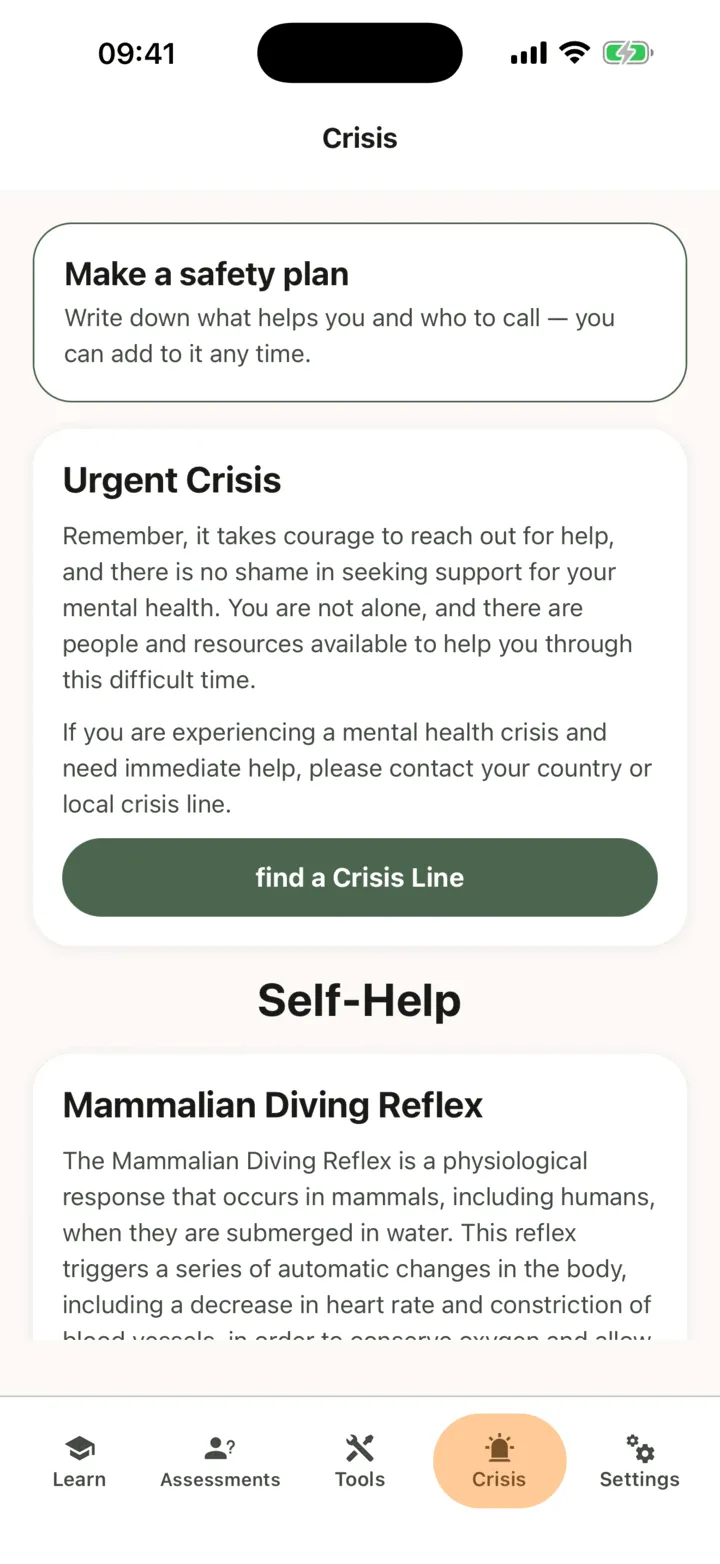
- Write a first line in 1. Warning signs, for example what you notice when a hard time may be starting.
- Tap Save.
The plan opens with your line. The other parts say that nothing is there yet. Back on the Crisis tab, the first row now reads My safety plan and tells you how many of the 7 parts are filled in.
The seven parts
Section titled “The seven parts”| Part | What you write |
|---|---|
| 1. Warning signs | What you notice when a hard time may be starting. |
| 2. Things I can do on my own | What you can do on your own to take your mind off things. |
| 3. People and places that help me feel steadier | Where you can go, or who you can be around. |
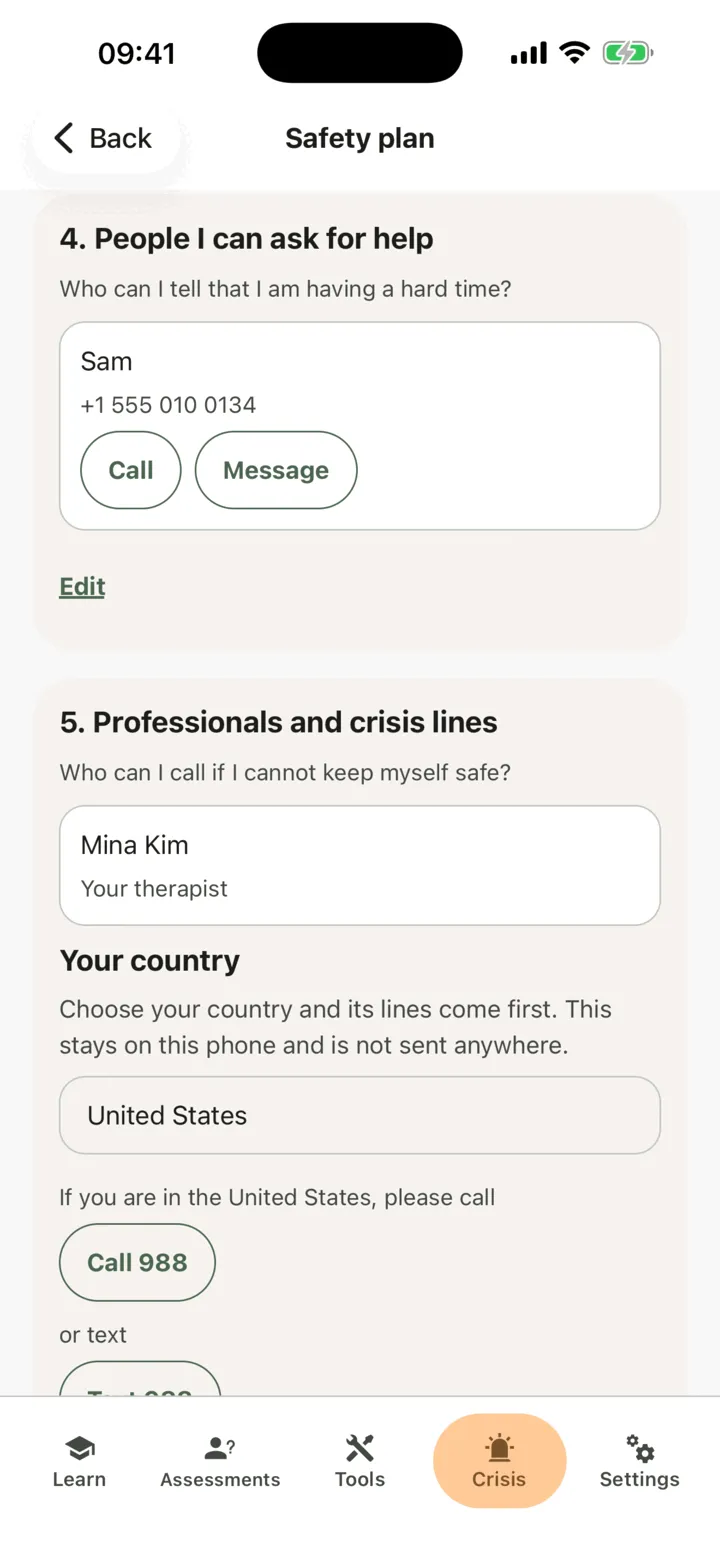
| 4. People I can ask for help | Who you can tell that you are having a hard time, with a name and a number. |
| 5. Professionals and crisis lines | Who you can call if you cannot keep yourself safe. Your therapist and the help lines are listed here for you (in English, the US lines and a line for people outside the United States, and the country you picked comes first, or, for a country without lines of ours, a row that points to the Find A Helpline directory), and the part has room for your own entries, such as your doctor. |
| 6. Making my surroundings safer | What you can do to make your surroundings safer. This is best done with your therapist. |
| 7. My reasons for living | What matters most to you and what you want to stay for. |
The plan is meant to be read from the top. Stop at the first step that helps.
Add to a part
Section titled “Add to a part”- Open your plan and, on the part you want, tap Edit.
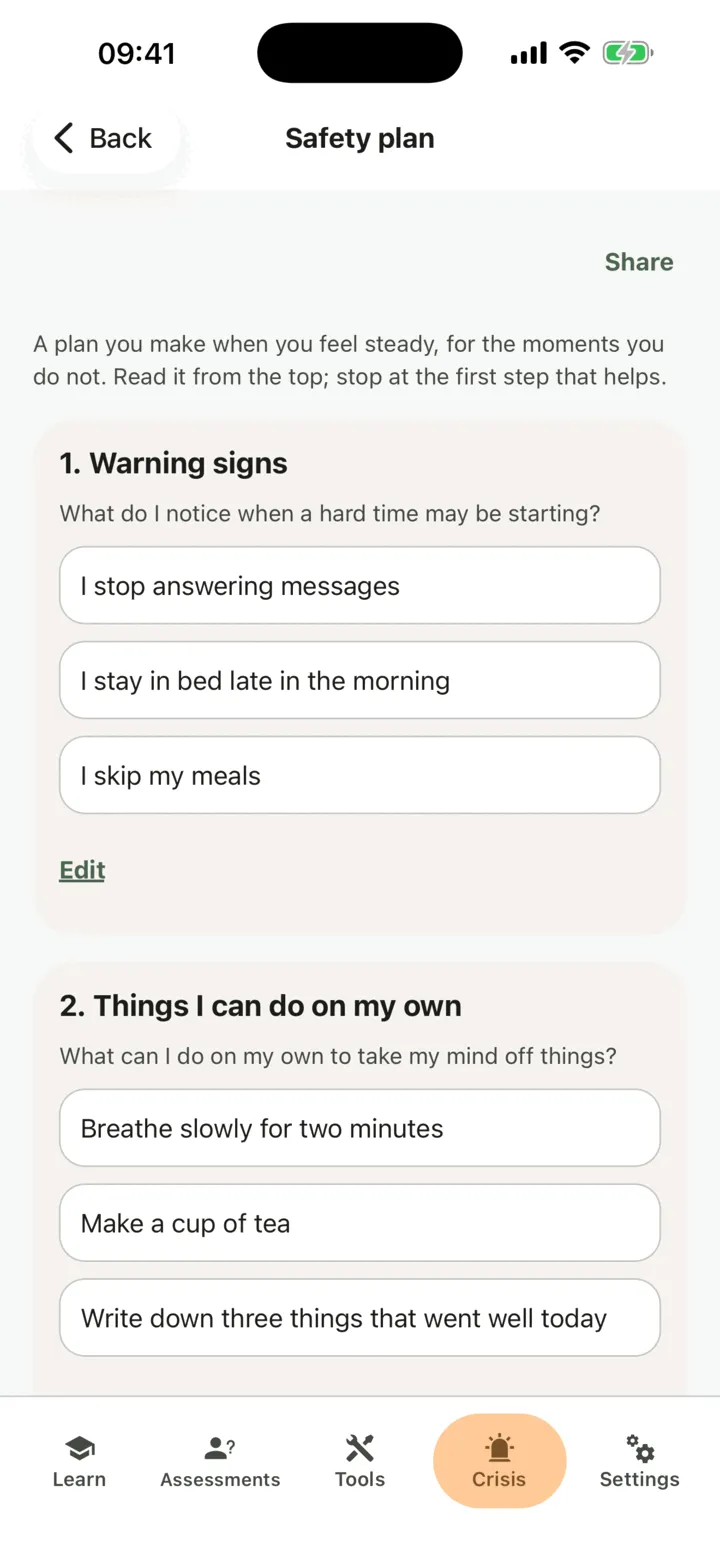
- Write an entry in One entry. A part holds up to 10 entries. To add another, tap Add another.
- Tap Save.
To clear a part, leave it empty and save.
Add a person to call
Section titled “Add a person to call”- On the plan, open part 4. People I can ask for help and tap Edit.
- Write a Name and a Phone number, or tap Choose from contacts and pick one person. Your phone may ask you to allow contacts first. If you say no, you can still type the name and number.
- Tap Save.
The person shows with Call and Message. Call opens your phone’s dialler with the number filled in, and you press call yourself. Message opens your messages with a short line you can change. CopingCard sends nothing to the person. Tapping Call, Message or a help-line number is recorded as use of the app, without the number or the text.
Part 5 has its own Your country control, the same as on Urgent Crisis. Tap it, then scroll or type in the search field and tap your country. The pick is one pick: choosing a country in part 5 changes Urgent Crisis too, and the other way round. It stays on your phone, and nothing is recorded or sent. In English, part 5 lists the US 988 line to call, the same number to text, the 988 chat and a line for people outside the United States. The country you picked comes first. If you picked a country the app has no lines for, the first row points to that country’s page on the Find A Helpline directory. Your therapist is listed by name. A number opens the dialler, and the text row opens your Messages app. See Find urgent help and calming exercises.
Open your plan quickly
Section titled “Open your plan quickly”You can open your plan from the Crisis tab, from the Tools tab, from the standing link My safety plan under the rows of a diary card, and from a questionnaire result, where the card Your plan and crisis lines offers Open my safety plan. With the latest version from the store you can also open it from outside the app:
- On an iPhone, add the My plan widget to the Home Screen. In Shortcuts or Siri, run the command Open my plan. You can also set the Action Button to it.
- On an Android phone, add the My plan widget, or press and hold the CopingCard icon and tap My plan.
Everything outside the app is plain: the name is My plan, the widget shows only an invitation to tap and nothing of your plan, and the plan never appears on the lock screen, in search or in Siri suggestions. To change the name the widget shows, scroll to the bottom of your plan, open Name outside the app, write a Name and tap Save. Only you see it, and nothing is recorded.
Your plan opens and reads with no connection. To keep a copy, tap Share: your phone’s share sheet opens with a plain-text copy.
When you write something hard
Section titled “When you write something hard”After you save text in the coping card editor, a thought test, a worksheet or a journal form, or the note of a check-in or a diary card, your phone looks at what you wrote for a short list of clear phrases, in English and in Russian. If it finds one, it shows a card, That sounds really hard, with up to three buttons:
- Open my safety plan, or Make my safety plan if you have none.
- See the crisis lines.
- Not now.
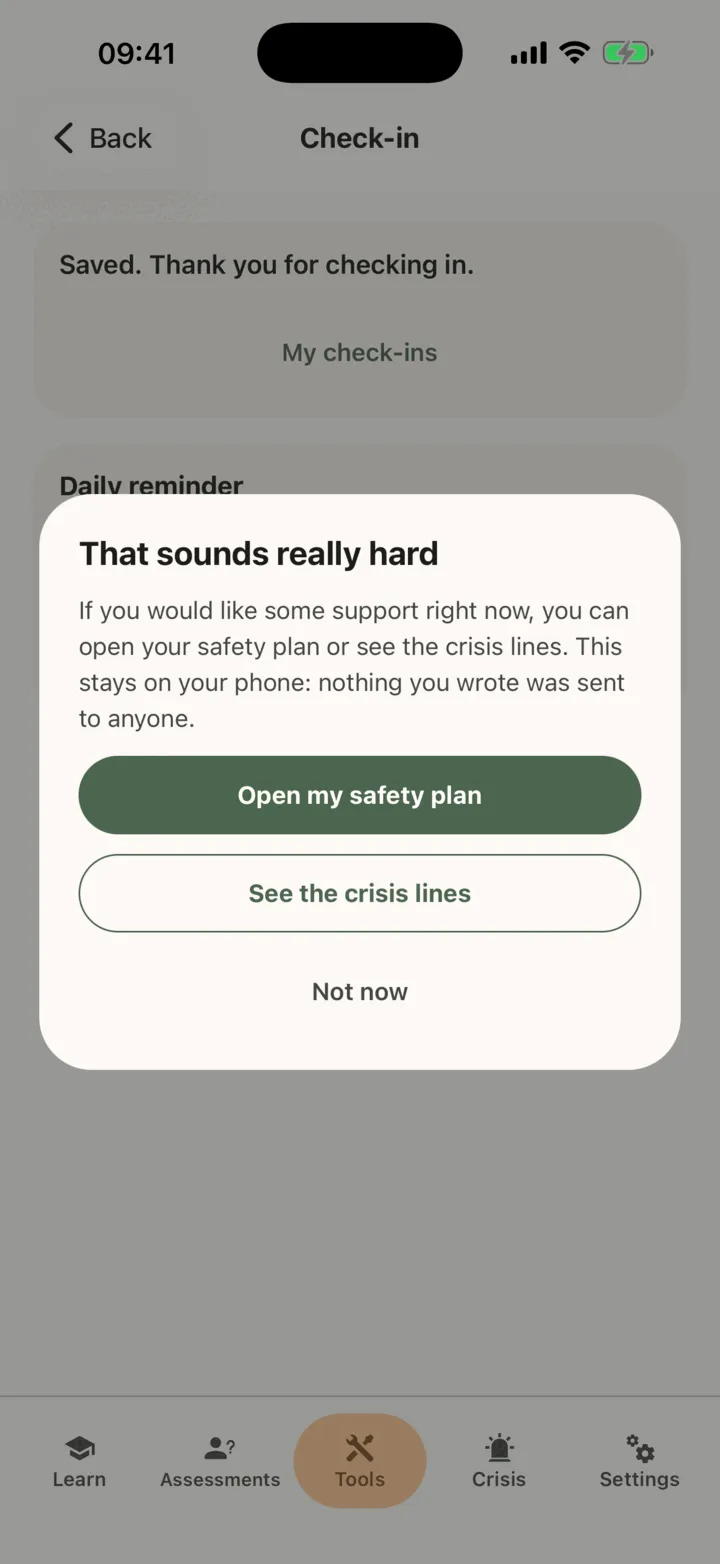
This happens only on your phone. Nothing you wrote is sent to anyone, stored or counted, and your therapist is not told. Your text is saved first and is never changed or blocked. It is a simple check, not a monitor: it can miss how you feel, and CopingCard does not watch what you write as you write it.
Who sees your plan
Section titled “Who sees your plan”If you are connected with a therapist, they can read your plan on your page in their portal when they open it, but only if Allow viewing my data is on for them. The admins of their practice can too if Allow practice admins to view my data is on. When a therapist or an admin can see your data, the foot of the plan says: if you share data with a therapist, your therapist can see how many times a week you open this plan, not when and not what you read, and nothing is sent to them when you do. A part your therapist adds is marked with their name. If you switched off Allow editing my data for a therapist, they can read the plan but not change it. See Choose what your therapist can see.
For therapists
Section titled “For therapists”A client’s plan shows on the Safety plan tab of their page. You read it if the client lets you view their data, or, as a practice admin, lets practice admins view it. You can edit it only if the client lets you edit their data, or, as a practice admin, lets practice admins edit it. CopingCard does not alert you when a client changes or opens their plan.
Read the plan
Section titled “Read the plan”- In the portal menu, click Clients and open the client’s page: see Find a client and open their page.
- Click the Safety plan tab.
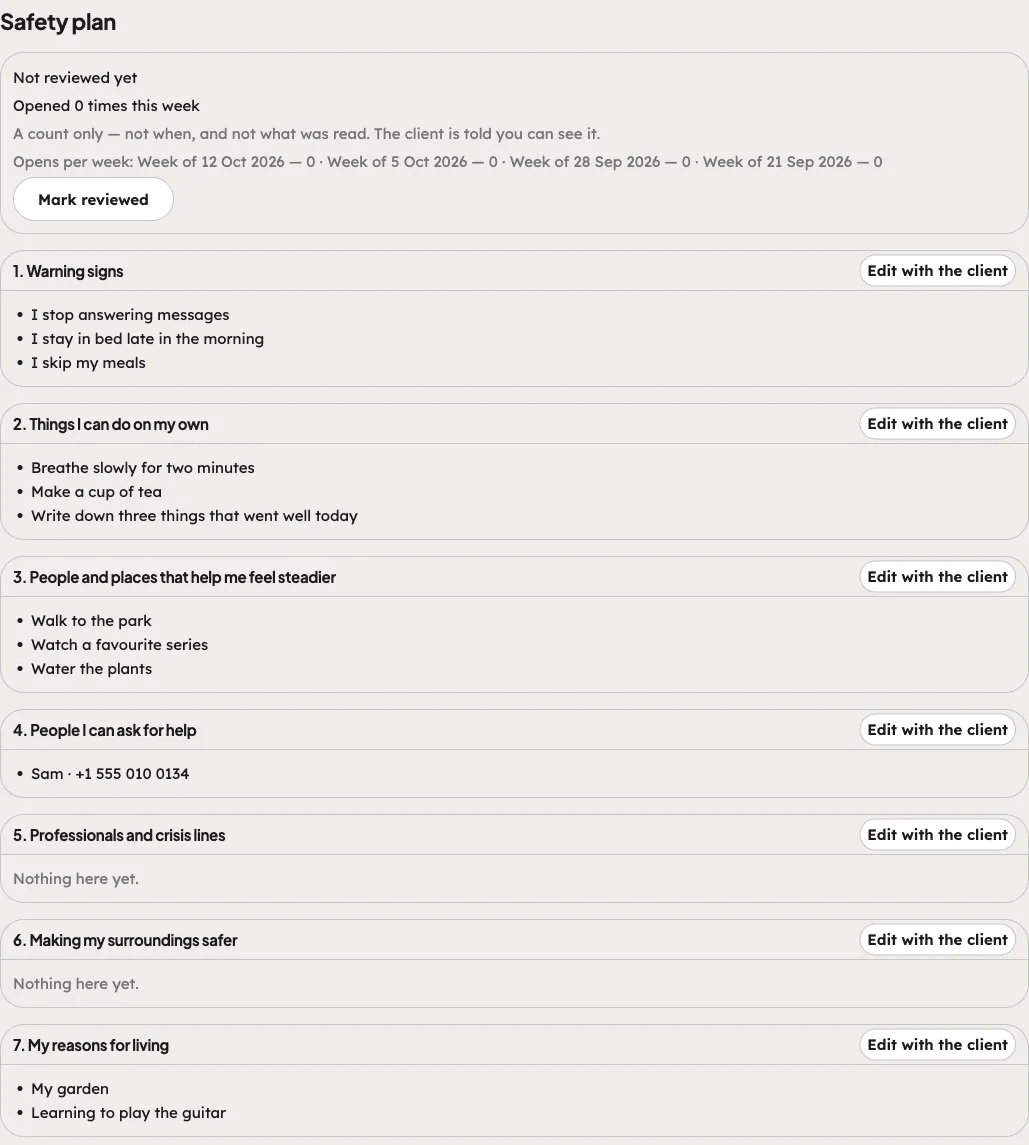
The tab shows each of the seven parts as the client last saved it. Under the heading, it shows how often the client opened the plan this week (Opens per week lists the weeks). It is a count only: not when, and not what was read. The client is told you can see it. When the plan was last reviewed and when the next review is due also show there. If the client has not made a plan yet, the tab says so.
The History card under the parts lists every change and every review, newest first, with who made it: you, a colleague or the client.
Edit a part with the client
Section titled “Edit a part with the client”- On the part you want, click Edit with the client.
- Write the entry, and click Add entry for more. Use Person or Place to say what it is, and add a Phone if you want.
- Click Save part.
The portal confirms the save, and the client’s phone shows the change at once, marked with your name. Your entries are your practice’s record. If you can only view the client’s records, the tab says that editing needs the client’s permission, and there is no Edit with the client.
Mark the plan reviewed
Section titled “Mark the plan reviewed”- Click Mark reviewed.
- Under Next review by, choose a date, and write a Note (optional).
- Click Mark reviewed.
Mark reviewed is offered once at least one part is saved. The review appears in the history.