

Assign homework to a client
You assign homework on the client’s page in the portal. It reaches the client in the CopingCard app, and CopingCard tells them about it. You can assign homework to a client who shares at least some of their data with you. As a practice admin, you can also assign it to a colleague’s client who allows practice admins to view or edit their data.
Assign a piece of homework
Section titled “Assign a piece of homework”- In the portal menu, click Clients, then open the client’s page with the eye icon in their row. If the eye icon is greyed out, open the client from the Homework board.
- Click the Homework tab.
- Click Assign homework.
- Under Kind, choose Tool, Questionnaire, Worksheet, Reading, Task, Link or Video.
- In What, choose the tool, questionnaire, worksheet or Learn article, or enter the web address for a link. For a video, choose A YouTube or Vimeo link and paste the link, or A video from the Learn library and pick one. A task has nothing to choose. For a worksheet, open the dropdown above the list (it reads All categories and a count) and choose a category to see only its worksheets. A worksheet you already picked that is not in that category is cleared. The worksheet list shows the templates in the portal’s language; tick Show worksheets in all languages to see every language, which also sets the category back to All categories.
- Fill in Title and, if you want, Instructions. The client sees both.
- Under Deadline, choose One due time and set Due at (the time starts at 18:00 once you pick a date, and you can change it), or choose Repeats and set Repeat, the days, At and Starting.
- In Reminders, choose At the due time, then 2 days later, At the due time only or No reminders.
- Click Assign.
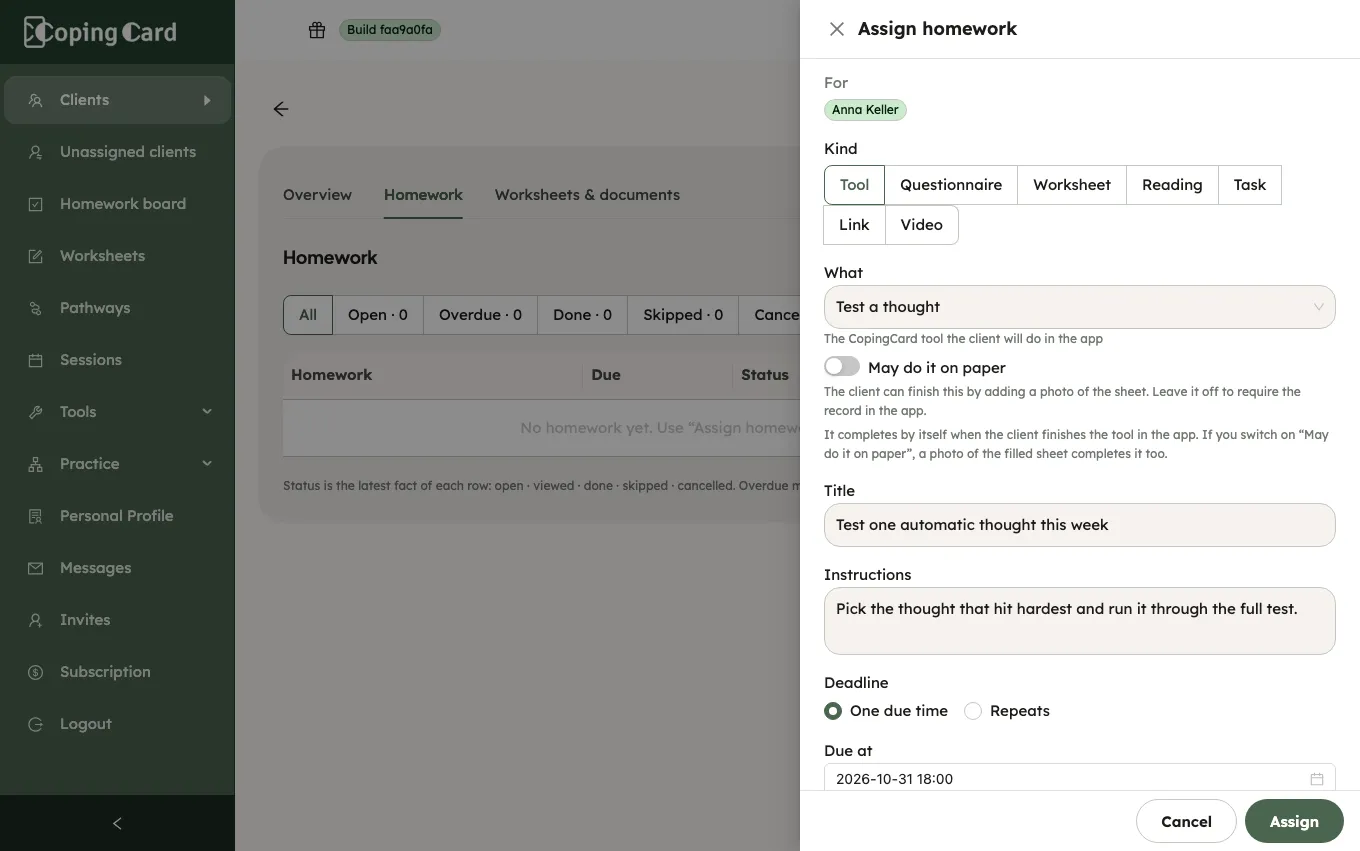
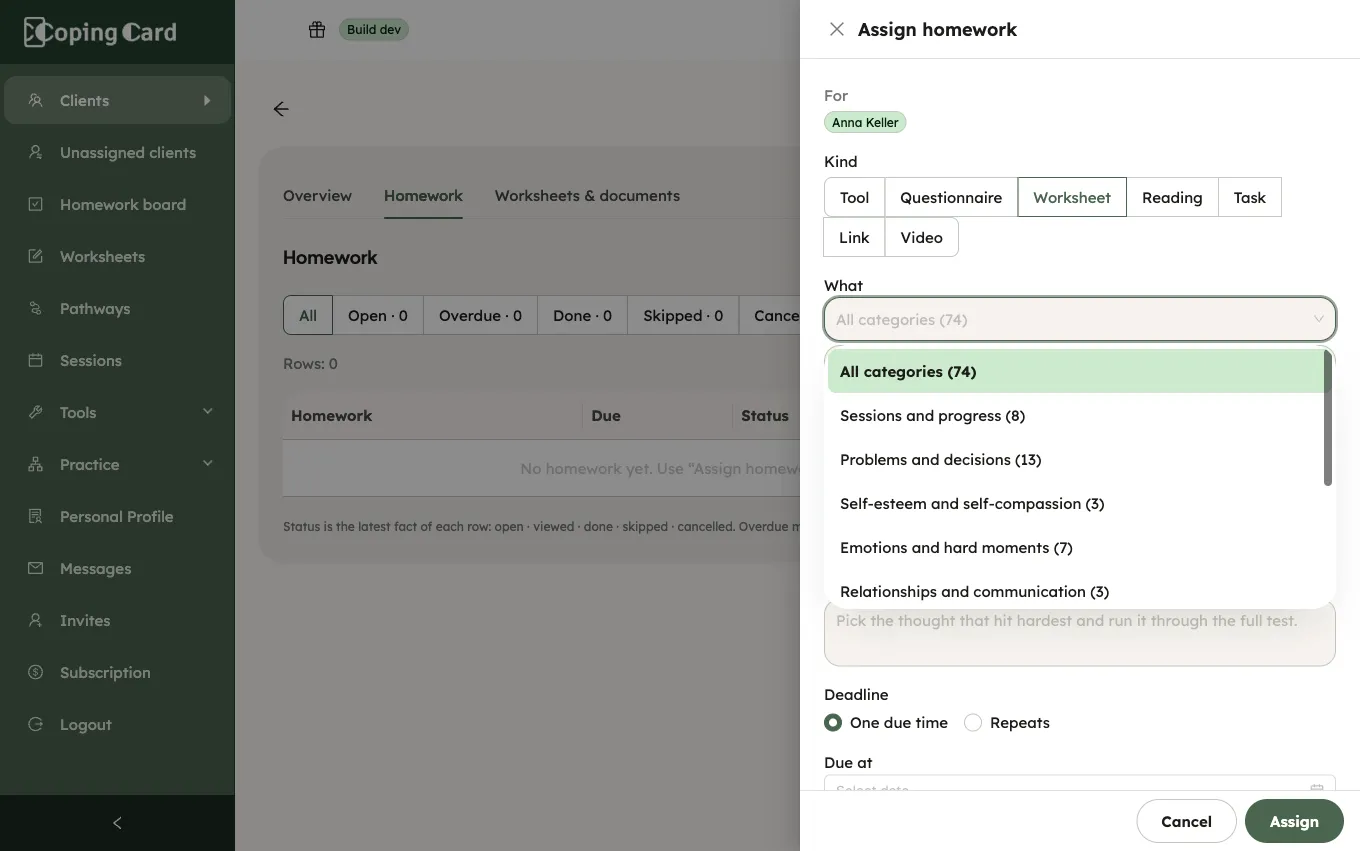
The portal confirms that the homework is assigned, and it appears on the client’s Homework tab.
The tools you can assign
Section titled “The tools you can assign”Under Kind, choose Tool. The list under What holds the tools that have a record to finish: Test a thought, ABC model, Downward arrow, Worry tree, Vicious cycle, Behavior experiment, Exposure and Meditation, and the tools added in 1.6.0:
| What | Marked done by itself when |
|---|---|
| Daily check-in | The client saves their own check-in after you assigned it. A check-in you record in session does not count. See Check in on how you are today. |
| Diary card | The client fills in your practice’s card in the app. Under Starting template (optional) you can choose a template for the client to begin from. A day you fill in in session does not count. See Fill in a diary card. |
| Values card sort, Values wheel, Valued Living Questionnaire | The client finishes it on their phone. A wheel rating you make in session does not count. See Find what matters to you with Values. |
| Wind rose | The client chooses a way. See Compare ways of living with the Wind rose. |
| Log your days (activity monitoring), Choose and rank activities, Plan an activity, Ask for support | The client does that step on their phone. See Plan activities with Behavioral Activation. |
For a questionnaire, What also offers DASS-21 · depression, anxiety, stress, PCL-5 · symptoms after a stressful experience and GDS-15 · mood, for older adults, beside the PHQ-9 · depression and GAD-7 · anxiety. See Take a PHQ-9 or GAD-7 assessment.
For a task, turn on Set an activity target under What to name a workout, its Minutes each and Times a week. If the client shares activity with CopingCard, the task completes itself once their phone shows enough workouts. Otherwise the client marks it done. See Share health data from your phone.
Let a client do a tool on paper
Section titled “Let a client do a tool on paper”A tool is done in the app unless you allow paper. You decide for each piece of homework, and the switch is off until you turn it on.
- In the Assign homework drawer, under Kind, choose Tool.
- Turn on May do it on paper.
- Finish the rest of the form and click Assign.
To change it later, click Edit in the row of the open homework, turn May do it on paper on or off, and click Save changes. The row shows paper allowed while the switch is on.
The client can then finish the tool with a photo of the filled sheet instead of in the app. Only a tool has the switch. A worksheet has none: the drawer says whether done on paper is allowed for it. A program’s tool steps start without paper; you can allow paper for one released step with Edit. A tool a client adds for themselves never allows paper.
How each kind is marked done
Section titled “How each kind is marked done”| Kind | How it is marked done |
|---|---|
| Tool | By itself, when the client finishes the tool in the app, or you finish it for them in the portal. If you turned on May do it on paper, a photo of the filled sheet marks it done too. |
| Questionnaire | By itself, when the client submits the questionnaire in the app. A result you enter in session does not count. |
| Worksheet | By itself, when the client sends the form in the app. A form that asks for a signature is done when they sign it. A worksheet with no score that is not a consent and has something to fill in can also be done on paper, with a photo of the filled sheet. You can print it for the client. |
| Video | By itself, when the client has watched it to the end in the app. There is no Mark done for a video. CopingCard stores no video: a YouTube or Vimeo video plays from its own site, and unlisted YouTube and private Vimeo links play too. |
| Reading, Task, Link | The client marks it done, and can add a note for you. A task can also carry a photo, which is optional. |
A scored worksheet, a consent, a questionnaire, a reading, a link and a video cannot be done on paper.
A behavior experiment is done when the client records an observation of it or completes it. Several observations in one period count as repeats, and you see each one. Only a tool, questionnaire, worksheet or video finished after you assigned the homework counts.
Repeating homework
Section titled “Repeating homework”Homework that repeats, for example a questionnaire every month, is one piece of homework with a date for each time. It runs in the client’s time zone. Each time counts on its own: the client’s page shows which ones were done, skipped or missed.
What happens next
Section titled “What happens next”- CopingCard tells the client at once, with a notification on their phone or, if a notification cannot reach them, by e-mail. It names you and the homework.
- With the reminders on, the client is also reminded at the due time and, if it is still not done, two days later. A reminder that would land between 21:00 and 08:00 in the client’s time zone is sent at 20:00 instead: the same evening if it falls from 21:00 on, the evening before if it falls before 08:00. The due time does not change.
- If the client’s app is too old to show homework, the portal says so. You can still assign it. CopingCard e-mails the client once to update the app, and they find the homework after they update.
Related
Section titled “Related”- Track a client’s homework
- See who is behind on the Homework board
- Find and do your homework (what your client sees)