

Fill in a diary card
A diary card is a one-minute daily record of the things you and your therapist want to follow: urges, actions, feelings and the skills you used. You can set up your own card, or your therapist can set one up for you.
For clients
Section titled “For clients”You need the latest version of the CopingCard app, signed in.
Set up your own card
Section titled “Set up your own card”- Tap the Tools tab at the bottom of the screen.
- On the How are you today? card, tap Set up my diary card. The way in to the diary card is on the check-in card; it appears once the app has loaded your cards.
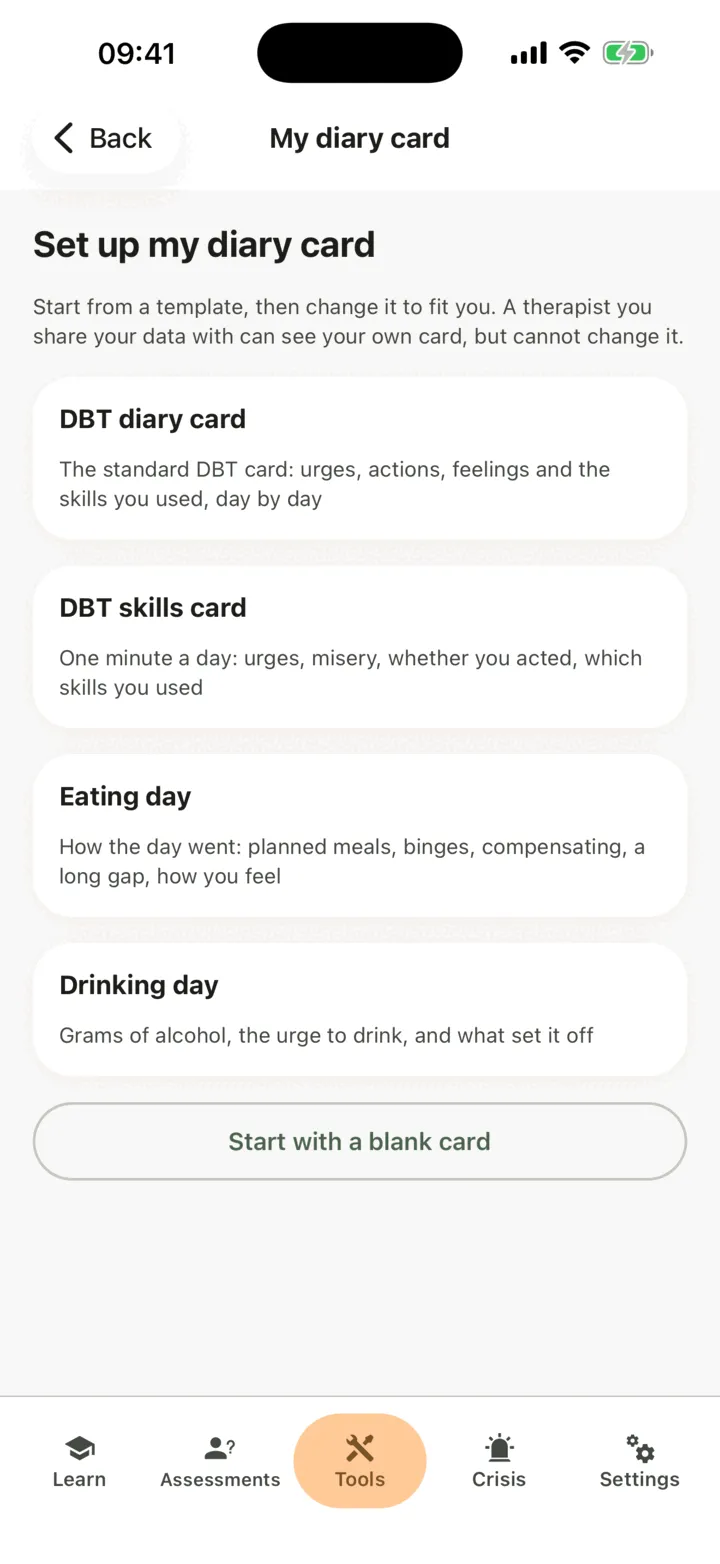
- Choose a template: DBT diary card, DBT skills card, Eating day or Drinking day. Each one has a one-line summary. Or tap Start with a blank card.
- Change the rows to fit you. Write the Row name and choose its kind: Urge, Scale, Yes / no, Count or Short text.
- To drop a row, tap Remove this row. To add one, tap Add a row.
- Tap Save my card.
A therapist you share your data with can see your own card, but cannot change it. You can change the card any time: open the diary card as in the next section and tap Edit my card. Earlier days keep the rows they were filled in with.
Fill in today
Section titled “Fill in today”- On the How are you today? card, tap Fill in today. Once you have filled in the day, the same line reads Open my diary card.
- Under Which day is this for?, choose Today, Yesterday or one of the earlier days shown. You can fill in today or any of the last 7 days.
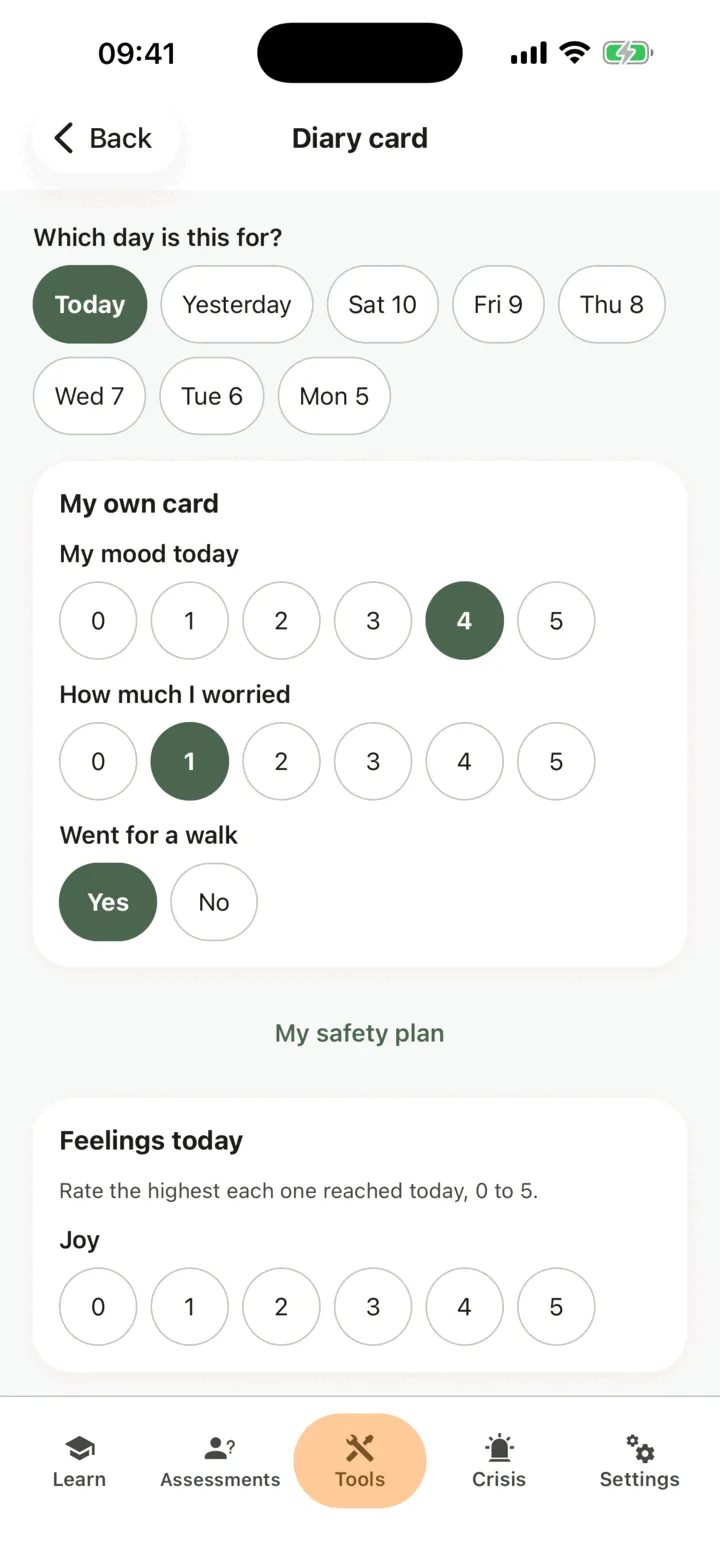
- Rate each row. Under Feelings today, rate the highest each feeling reached, from 0 to 5.
- Under Skills used today (0–7), give a number, and under Which skills did you practise?, tap the skills you used.
- Write what you want to remember in A note.
- Tap Save.
If you already filled in that day, saving again replaces it. If your therapist also set up a card for you, the app shows one form for all your cards, and a row that is on several cards is asked once. A line under the note names who reads it.
The app does not react to what you rate. It shows no colour, alert or message for a high rating, and CopingCard does not monitor what you write as you write it. A short note under the fields says so, and its link is Crisis lines and techniques. A standing link, My safety plan, sits under the rows. See Make and use your safety plan.
If your screen shows Daily reminder, tap Set a reminder, choose the time and save, to get a nudge each day.
Read your week
Section titled “Read your week”- On the How are you today? card, tap Fill in today or Open my diary card.
- On the diary card, tap My week.
- To move by one week, tap Earlier or Later.
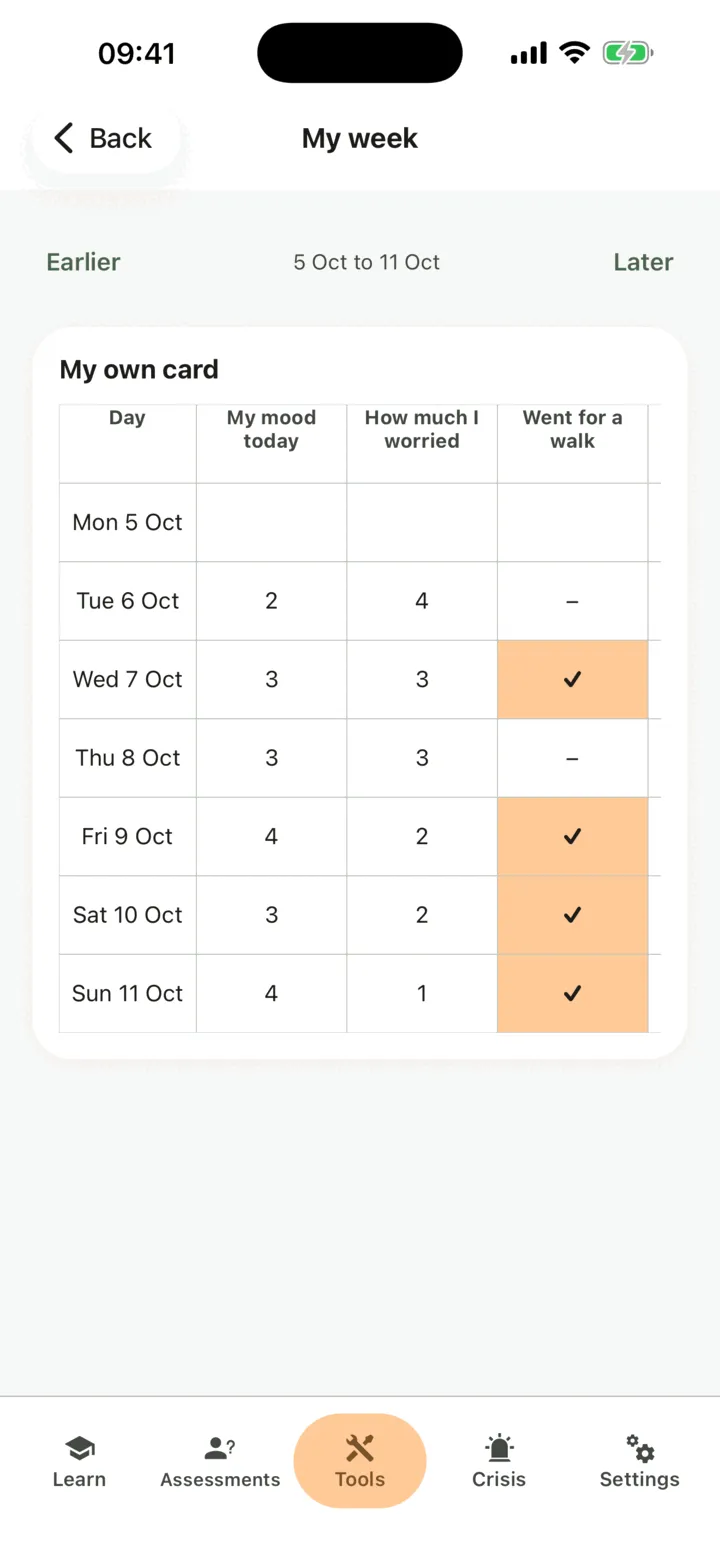
The week is a grid with the days down the side and the rows across. A rating above zero stands out. A day your therapist filled in with you in session shows Filled in session. If you have more than one card, each one has its own grid.
Who sees your diary card
Section titled “Who sees your diary card”If you are connected with a therapist and Allow viewing my data is on for them, they can read the card their practice set up for you and your own card on your page in their portal. They can read your own card but cannot change it. If Allow viewing my data is off, their portal says that you do not share this with them. They see the card when they open the page, and they are not alerted when you fill it in. A therapist never sees another practice’s card. The admins of their practice see it too if Allow practice admins to view my data is on. See Choose what your therapist can see.
For therapists
Section titled “For therapists”You set up one card for each client. The client sees one form for all their cards, so your card, any other practice’s card and the client’s own card sit together on the phone. You see your own card and, read only, the client’s own card. You never see another practice’s card. You see the tab only if the client lets you view their data, or, as a practice admin, lets practice admins view it. If not, it reads The client doesn’t share this with you.
Set up the practice’s card
Section titled “Set up the practice’s card”- In the portal menu, click Clients and open the client’s page: see Find a client and open their page.
- Click the Diary card tab, then Set up the card.
- To begin from a template, choose one under Start from a template (optional).
- Change the rows. For each row write a name, choose its kind and, where it applies, tick Count how many. Click Add a row to add one.
- Add the feelings (Feelings (rated 0–5)) and the Skills you want to follow.
- Click Save card.
The portal confirms that the card is saved, and the client sees it in their form from the next fill. The button now reads Edit the card. Saving again makes a new version of the same card. It is part of your practice’s record.
Read the week and fill it in with the client
Section titled “Read the week and fill it in with the client”- On the Diary card tab, read your card’s grid first, then the client’s own card, marked read only. Use Earlier week and Later week to move.
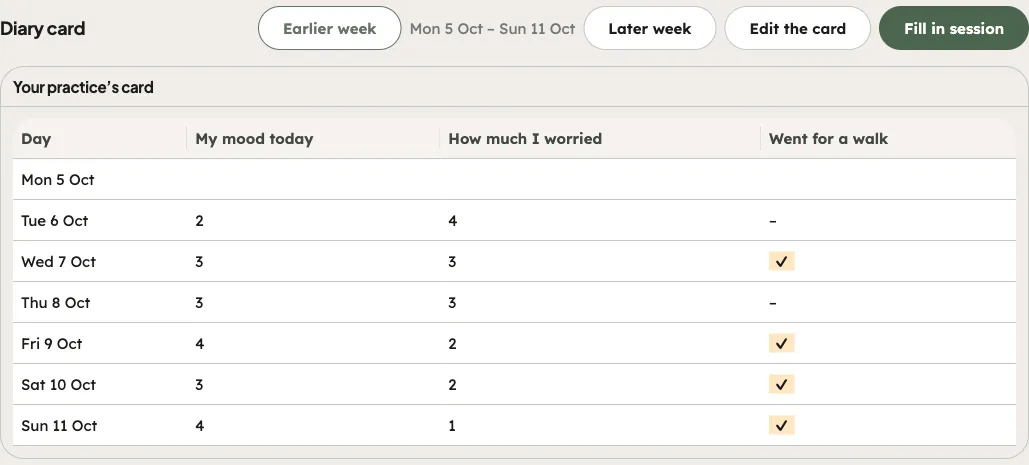
- To enter a day yourself, click Fill in session.
- Choose the Day, rate the rows of your card, and add Skills used (0–7), Skills practised and A note.
- Click Save for the client.
A day you fill in shows Filled in session. It is part of your practice’s record, visible to your practice and to the client. It does not count as the client filling it in, and it does not complete an assigned diary card. Fill in session works only after the practice’s card is set up, and only while the client still shares something with you.
On the session form, the Check-in recap tab ends with the highlights of your card since the last session: the days when a row was rated above zero. See Check in on how you are today. CopingCard does not alert you when a client fills in their card.
Assign a diary card
Section titled “Assign a diary card”- On the client’s Homework tab, click Assign homework.
- Under Kind, choose Tool. Under What, choose Diary card.
- Under Starting template (optional), choose a template if you want the client to begin from one.
- Fill in the rest and click Assign.
The homework is marked done by itself when the client fills in your practice’s card in the app. See Assign homework to a client.