

Fill in and send a worksheet
A worksheet is a form your therapist gives you as homework, for example questions to answer, an intake form or a journal. You fill it in and send it in the app, and the homework is then marked done by itself.
Fill in and send a worksheet
Section titled “Fill in and send a worksheet”- On the Homework list, tap the worksheet.
- Tap Open.
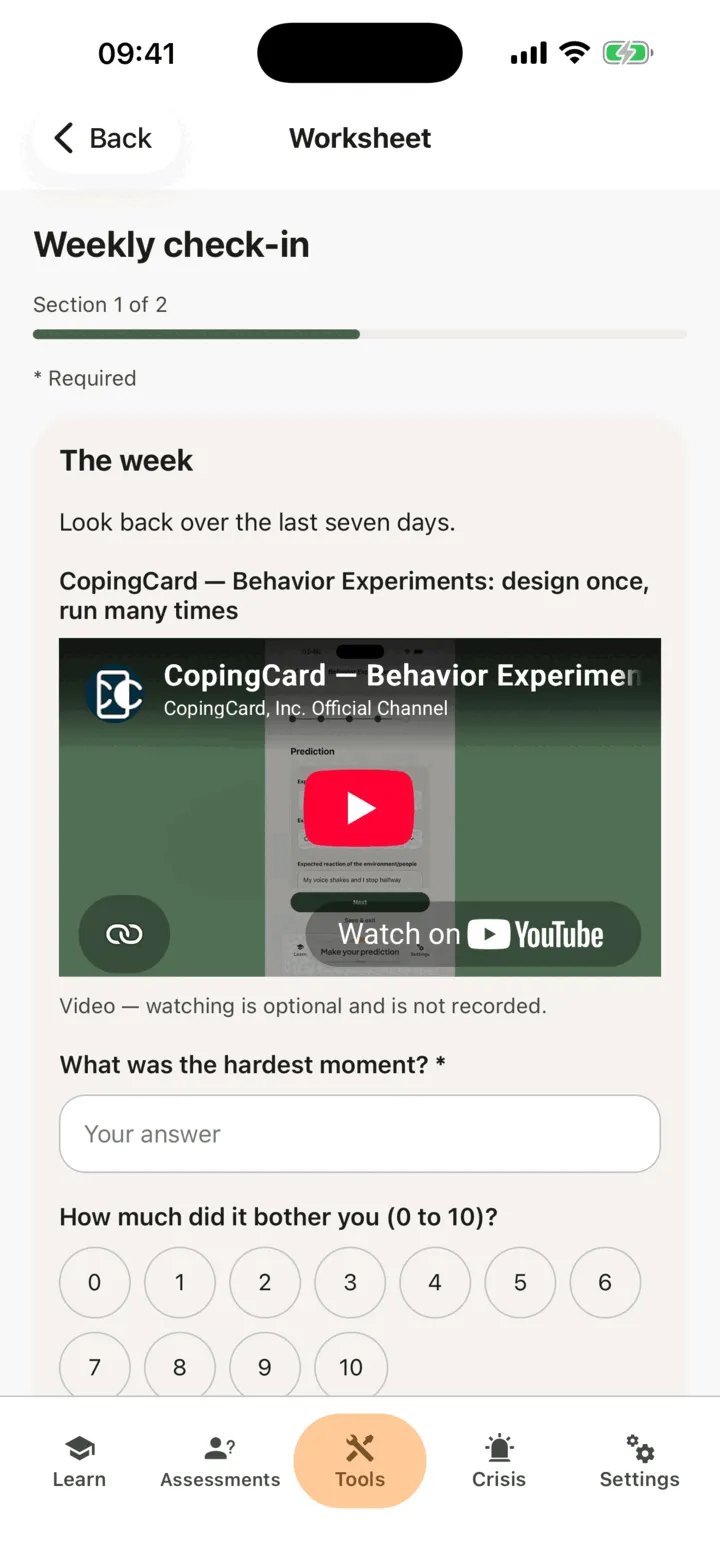
- Read the section’s instructions. If the section has a video, you can play it there. Watching it is optional and is not recorded.
- Answer the questions. Questions marked with a star (*) are required.
- Tap Next to go to the next section. To go back, tap Back.
- On the last section, tap Submit.
The app says the form is sent and that your therapist can now see your answers. Tap Back to homework: a moment later, the homework shows done. If the form needs your signature, it is done only after you sign it. See Sign a consent form in the app.
If a required question is still empty when you tap Submit, the app tells you and takes you to the section with that question.
Stop and continue later
Section titled “Stop and continue later”You do not have to fill in a worksheet in one go. If you leave the form, your answers are kept on this phone until you send them. Open the worksheet again to carry on. Signing out of the app clears answers you have not sent.
After you send it
Section titled “After you send it”- A worksheet is sent once. If you open it again, it shows the date you sent it.
- A journal is different: you can fill it in again and again. Each time you open it and send it, it is a new entry, and the form shows when you sent the last one.
- A worksheet with no questions, only something to read or watch, ends with Done reading instead of Submit.
- If your therapist filled in the worksheet with you in a session, it is already sent, and the app tells you so when you try to send it.
- If your therapist withdraws the worksheet, it can no longer be sent.
See your numbers over time
Section titled “See your numbers over time”A journal or another worksheet you can fill in again and again also shows your numbers as lines, so you can look back over the weeks.
- On the Homework list, tap the worksheet, then tap Open.
- Under the title, tap Over time.
- Read the chart. It has one line for each number or scale question, and a Score line when the worksheet adds up a score. Under each line you see its latest value and how many entries it has.
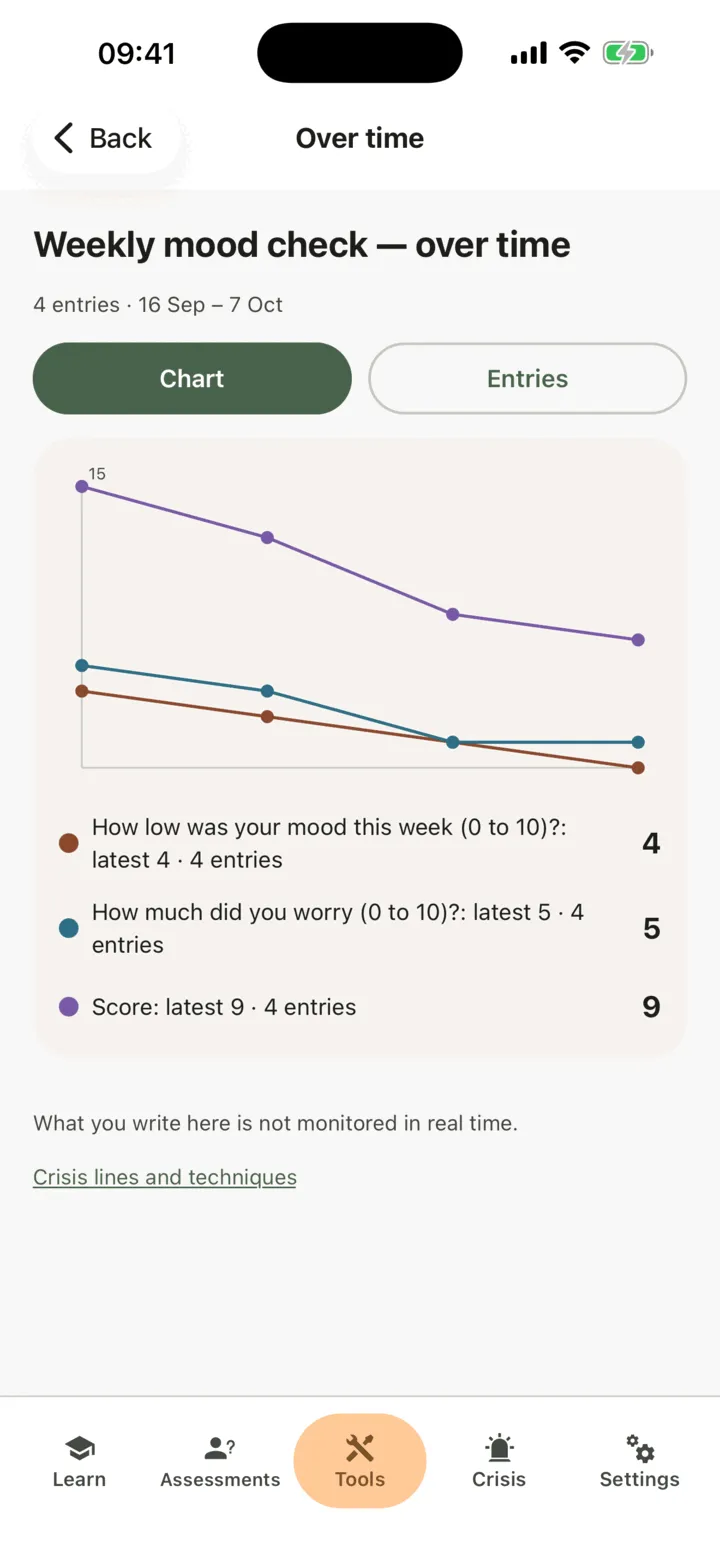
- To see your entries, tap Entries. The newest is first. To go back to the chart, tap Chart.
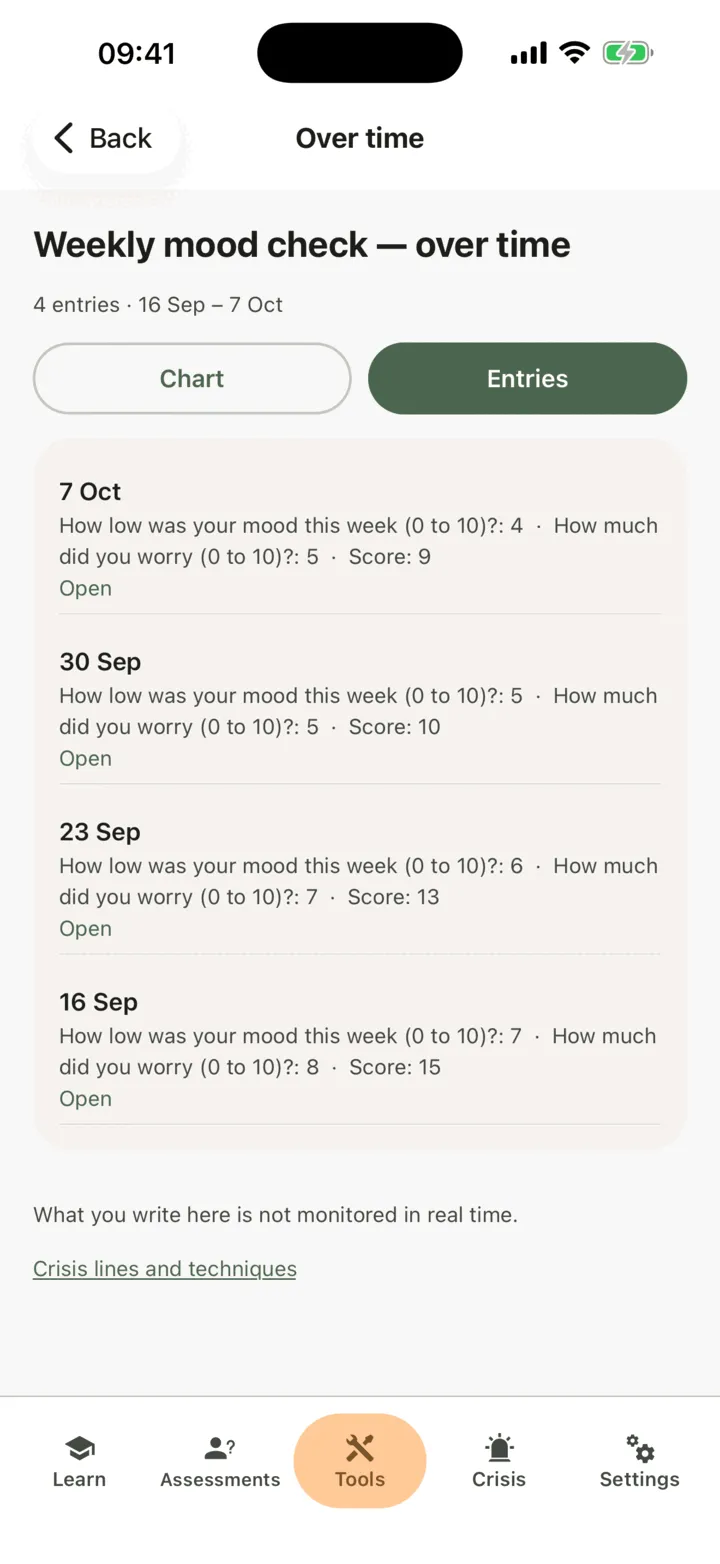
- To read an entry, tap it. It opens read only, with every answer you gave, including the ones you wrote in words, the date you sent it and its score.
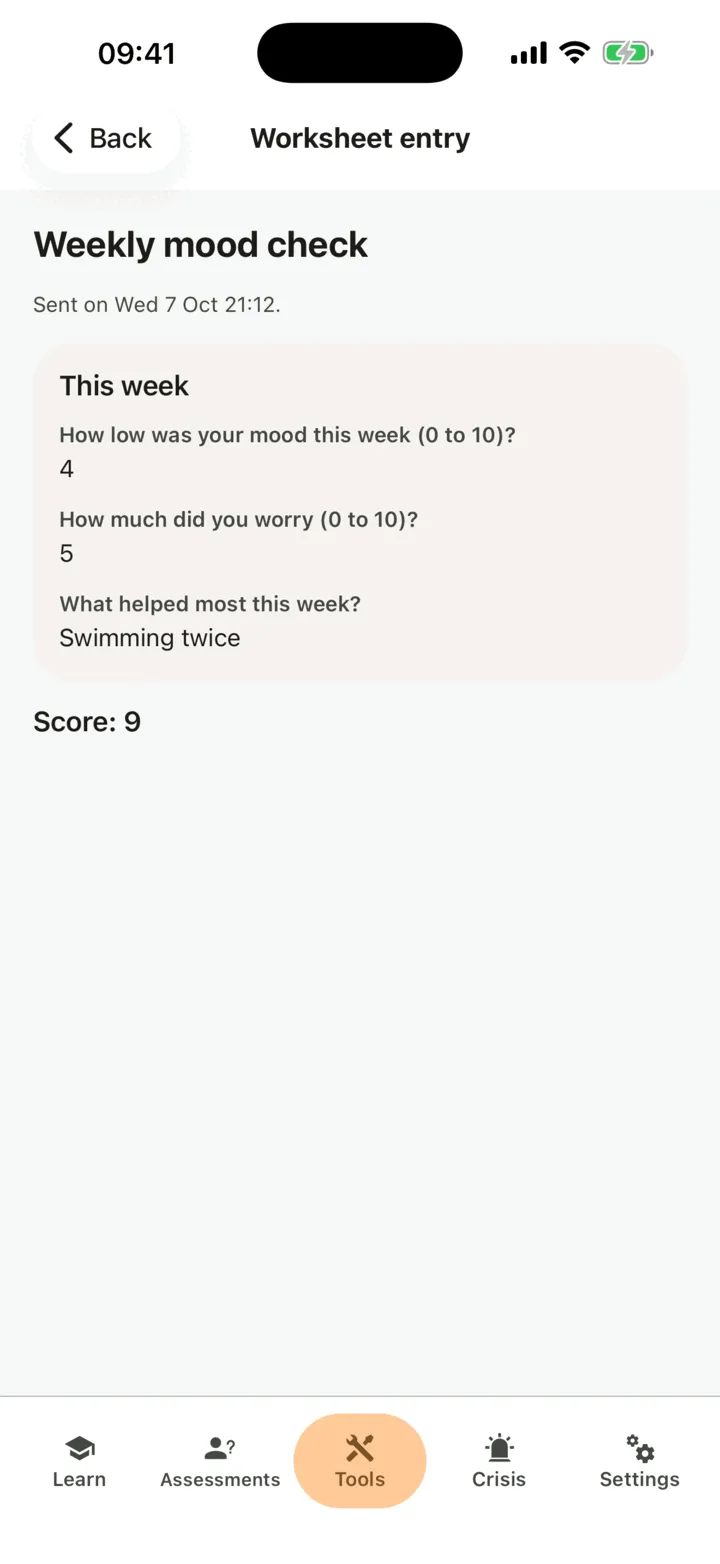
Below the chart, the app shows the note What you write here is not monitored in real time.
The chart shows your own numbers. It does not judge them, and it sends no alert. Text answers are not drawn: they stay in each entry. Before you have sent a first entry, the screen reads Nothing to draw yet.
Your therapist can see the numbers of the entries you have sent, as they see your answers (next section).
Who sees your answers
Section titled “Who sees your answers”On every page of a form with questions, below the buttons, the app shows the note What you write here is not monitored in real time. If you are in danger right now, tap Crisis lines and techniques to open the app’s urgent help.
Your therapist can see your answers in CopingCard after you send them, the next time they open CopingCard. They are not told when you send a form. If you allow practice admins to view your data, the admins of your therapist’s practice see them too. They do not see answers you have not sent yet. Nobody reads them as you write them.
A worksheet from your therapist stays in their record once sent, even if you later switch off sharing or delete your account.