

Listen to a guided meditation
Meditations are short guided audio tracks you listen to in the CopingCard app. Each one is a few minutes long. You can listen on your own, or your therapist can give one to you as homework.
For clients
Section titled “For clients”You need the latest version of the CopingCard app, signed in.
Play a meditation
Section titled “Play a meditation”- Tap the Tools tab at the bottom of the screen.
- Tap Meditations. You can also reach it from the Crisis tab with Go to Meditations.
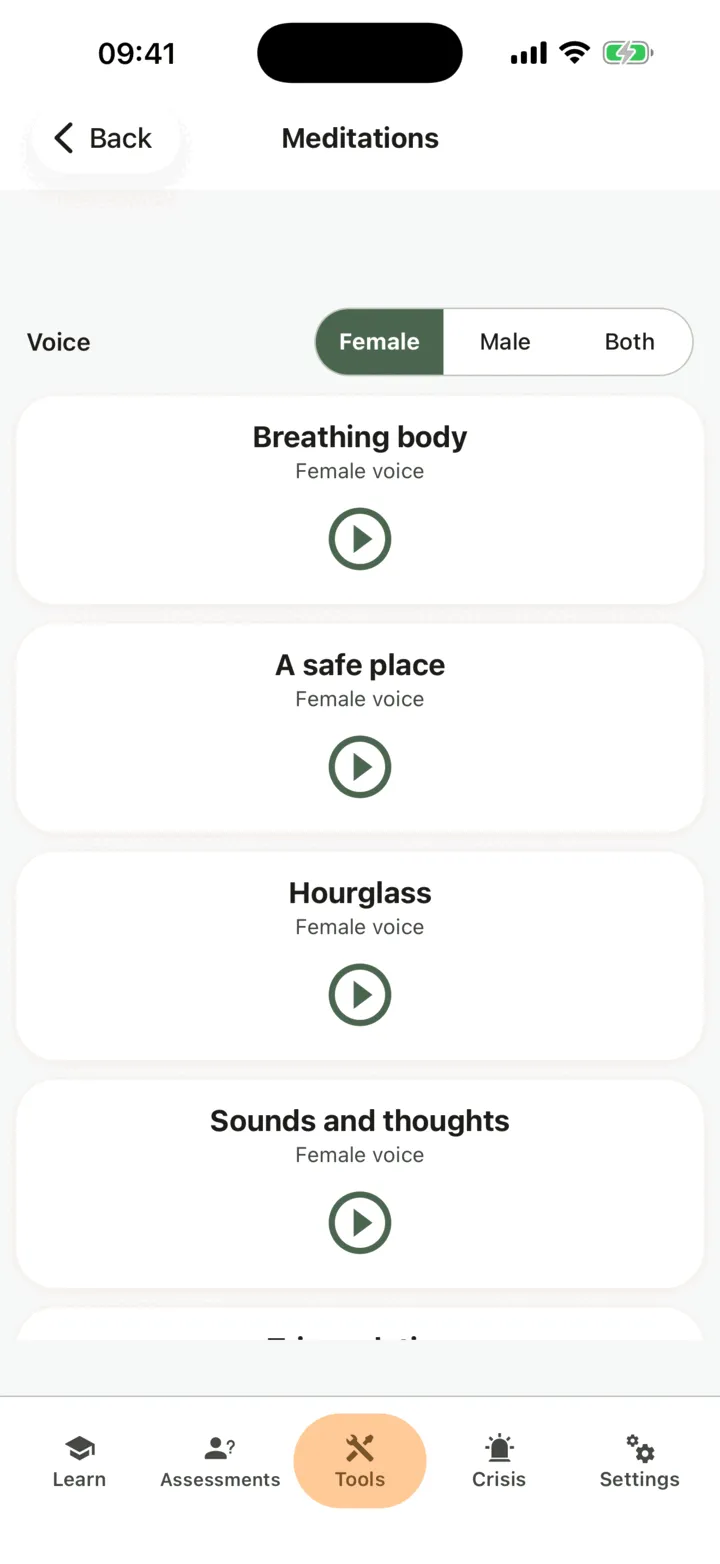
- The first time, wait while the app loads the audio. The play buttons spin until each file is ready.
- Tap the play button on the meditation you want.
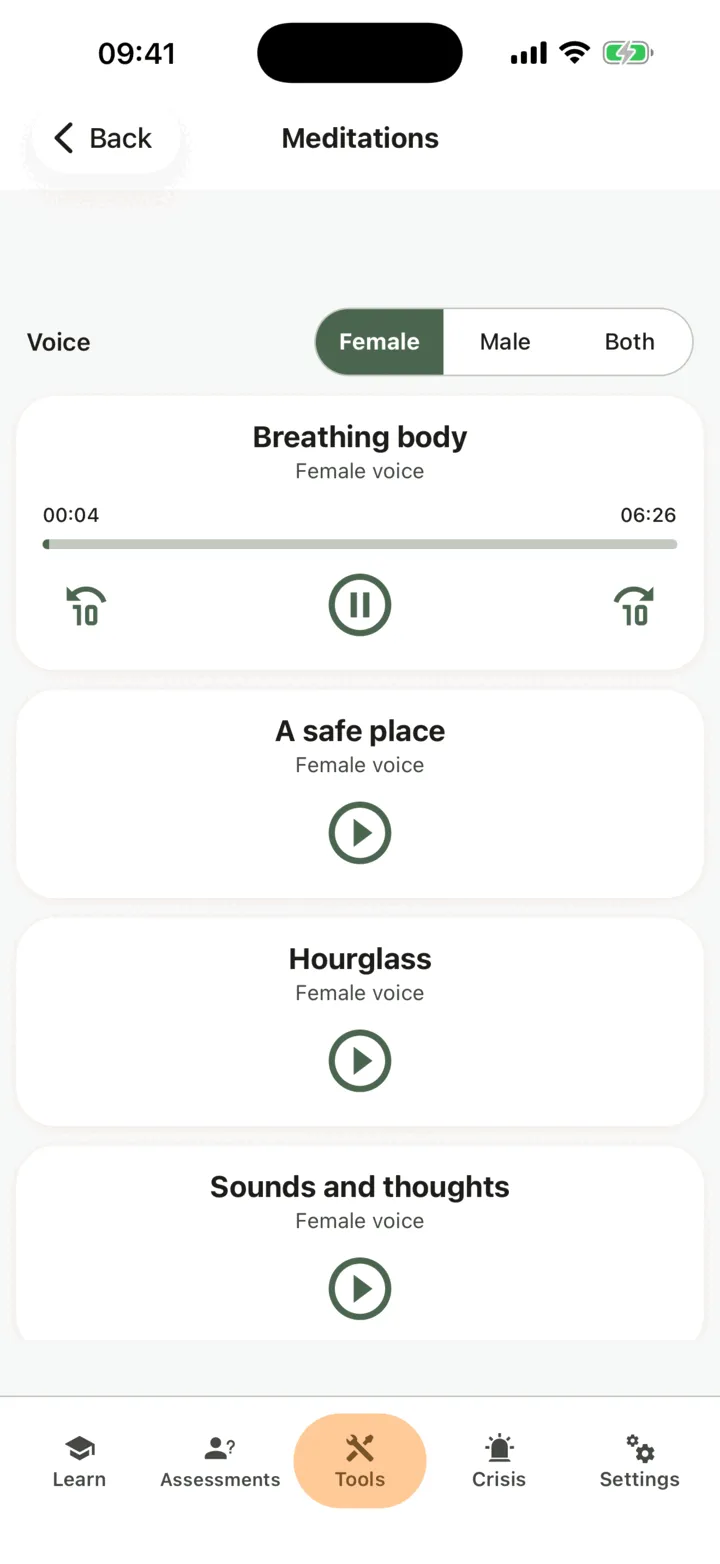
The card you started opens up and shows how far you are and the total length. On it you can:
- tap the pause button to pause, and tap it again to carry on;
- tap the back button to go back ten seconds, or the forward button to skip ten seconds ahead.
Only one meditation plays at a time. If you tap another one, it takes over. Pausing, carrying on and skipping inside a meditation are all one listen. The audio keeps playing if you lock your phone or switch to another app. Leaving the Meditations screen stops it.
The list follows the language of the app. With the app in Russian you see the Russian meditations. With any other language you see the English ones. The first load needs an internet connection.
If the app is closed while a meditation plays, it counts the listen as ended where you stopped, the next time you open the app.
Choose a voice
Section titled “Choose a voice”Each English meditation comes in a female voice and a male voice.
- On the Meditations screen, find Voice at the top of the list.
- Tap Female, Male or Both.
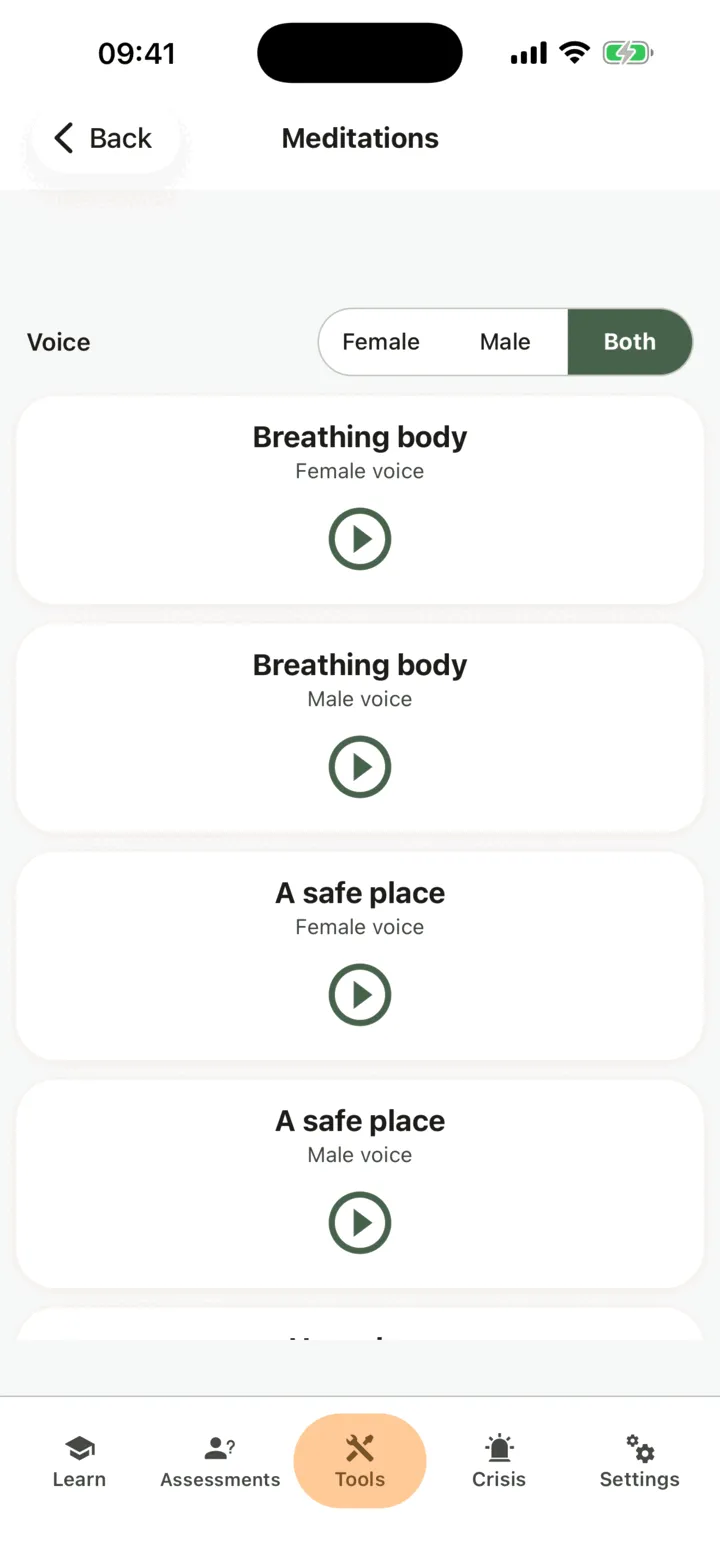
Female is selected until you choose. With Female or Male, the list shows each meditation once, in that voice. With Both, it shows each meditation twice: first in the female voice, then in the male voice. Each card says which voice it is: Female voice or Male voice.
Your choice is saved on this phone, and the app loads only the voice your list shows. Changing the voice never stops a meditation that is playing: its card stays on the list until that listen ends.
On the free plan, the other voice of a meditation you have just started counts as the same meditation, not a new listen.
The Russian meditations are Dmitri Dyakov’s own recordings, so the Voice setting is not shown when the app is in Russian.
The free plan
Section titled “The free plan”On the free plan there is a limit on how often you can start a meditation. When you reach it, tapping play opens the subscription screen instead. See Premium and the free plan.
Who can see it
Section titled “Who can see it”The app records each meditation you start as part of how you use the app. If you connect with a therapist, the options on the Data Sharing with Therapists screen in Settings decide who sees this. With Allow viewing my data on, your therapist sees it in the CopingCard portal. With Allow practice admins to view my data on, the admins of your therapist’s practice see it too. They see it when they open your page: they are not alerted when you listen. See Choose what your therapist can see.
For therapists
Section titled “For therapists”There is no Meditations page in the portal. You see that a client listened on their page, and you give a meditation to a client through homework.
See that a client listened
Section titled “See that a client listened”- In the portal menu, click Clients and open the client’s page: see Find a client and open their page.
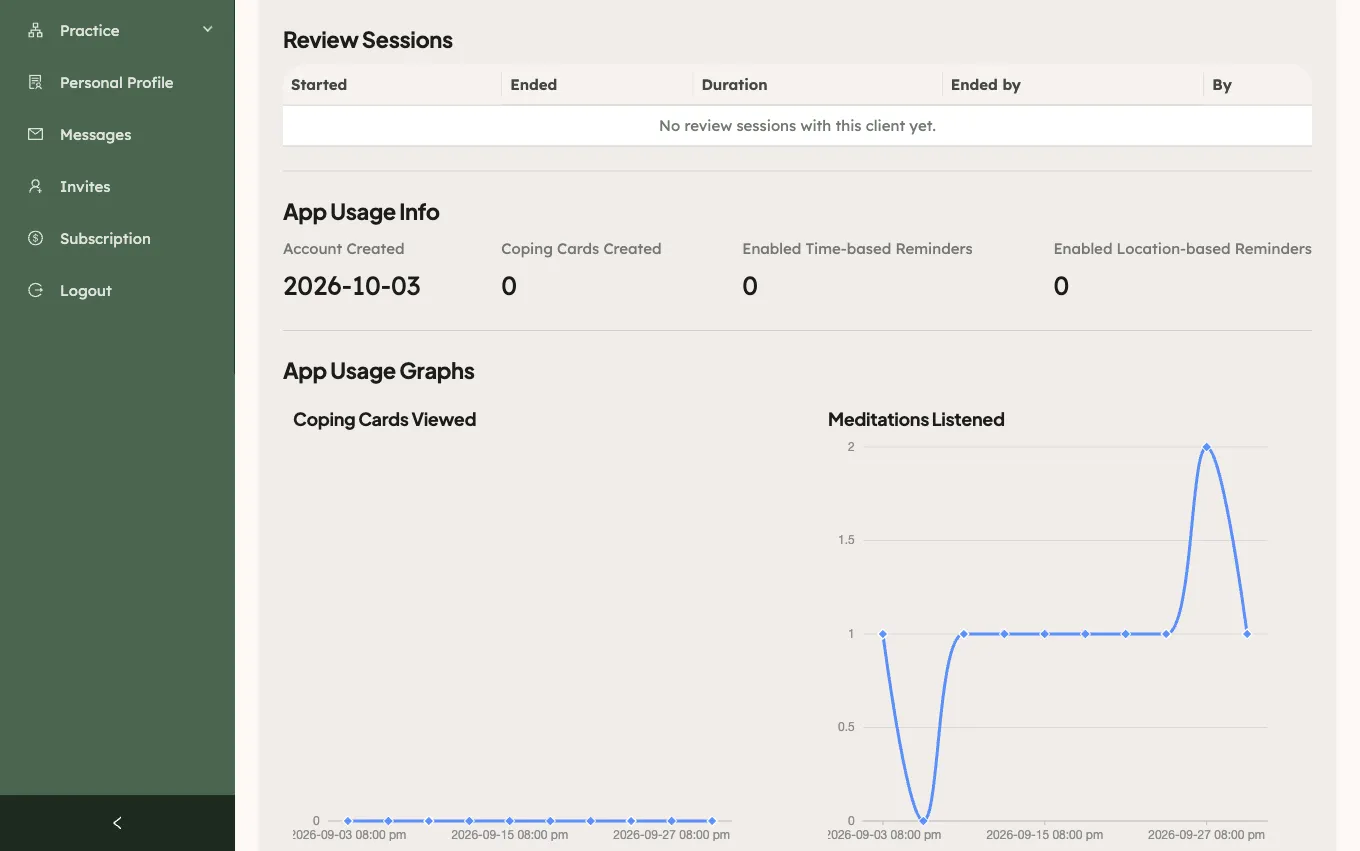
- On the Overview tab, find Meditations Listened, under the usage graphs. It counts the meditations the client started, over time.
- To see single listens, click Activity Calendar, then Activity Log. A row says that the client used a meditation, with the name of its audio file. It does not list every replay.
You see this only if the client lets you view their data, or, as a practice admin, lets practice admins view it. If they do not, the section reads The client doesn’t share this with you. See See a client’s activity in the app.
Assign a meditation as homework
Section titled “Assign a meditation as homework”- On the client’s page, open the Homework tab and click Assign homework.
- Under Kind, choose Tool.
- Under What, choose Meditation.
- Fill in the rest and click Assign.
You cannot choose a particular track: any meditation counts. The homework is marked done by itself when the client listens to a meditation to the end in the app after you assigned it. Skipping ahead to the end does not count. Neither does a listen that the app could only close after it was shut down. You cannot listen for the client in the portal. The full steps are in Assign homework to a client.